How to Fix Missing Meta Descriptions
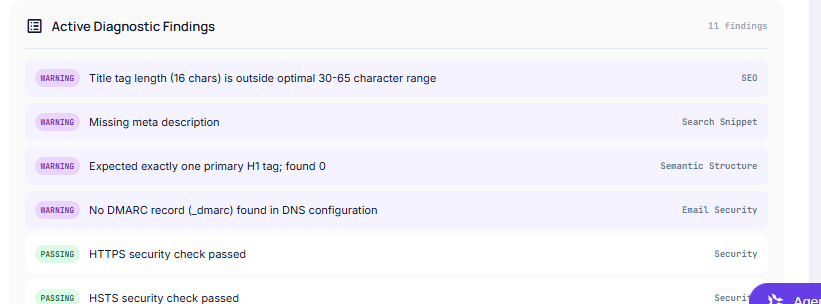
Have you run an SEO audit on your website using Sbseoanalyzer , Ahrefs, Semrush, or Screaming Frog, only to be met with a frustrating warning: “Missing meta description”?
While missing meta descriptions won’t trigger an immediate search penalty, leaving them blank means missing out on one of your best opportunities to drive search traffic. A well-crafted meta description acts as your site’s search engine billboard, influencing whether users click on your result or scroll past to a competitor.
In this guide, you’ll learn why meta descriptions matter, how to fix missing meta descriptions in WordPress Or any other platform using popular SEO methods, and best practices to ensure search engines actually display them.
Why Missing Meta Descriptions Hurt Your SEO
Search engines like Google don’t directly rank pages higher just because they have a meta description. However, meta descriptions directly impact Click-Through Rate (CTR).
Here is why resolving missing meta descriptions is vital:
- Higher Click-Through Rates: A clear snippet entices searchers to click your link over others. Higher CTR sends positive user-engagement signals to Google.
- Control Over Your Brand Message: If you leave the description blank, search engine bots will automatically extract a snippet of text from your content. This pulled text often lacks context or a call to action.
- Social Media Sharing: When users share your link on platforms like Facebook or LinkedIn, the platform usually pulls your meta description as the preview text.
Method 1: Fix Missing Meta Descriptions Using Yoast SEO
Yoast SEO is one of the most widely used SEO plugins for WordPress.
- Open the Page/Post: Navigate to your WordPress Dashboard, go to Posts or Pages, and open the item flagged for missing a description.
- Scroll to the Yoast Meta Box: Scroll down below the main content editor until you locate the Yoast SEO section. (If using the Gutenberg Block Editor, you can also access this via the Yoast icon in the top right sidebar).
- Expand the Google Preview: Click on Search appearance or view the snippet preview.
- Enter Your Meta Description: Type your snippet directly into the Meta description field.
- Check the Progress Bar: Yoast provides a real-time progress bar. Green indicates your description length is optimal (roughly 120–155 characters). Orange means it is too short or too long.
- Update Your Post: Click Update or Publish at the top right to save your changes.
Method 2: Fix Missing Meta Descriptions Using Rank Math
Rank Math makes setting site-wide and per-page meta descriptions straightforward.
- Open the Post Editor: Open the WordPress post or page you wish to edit.
- Access Rank Math Panel: Click the Rank Math SEO score badge in the top-right corner of the editor.
- Click “Edit Snippet”: In the General tab, click the Edit Snippet button to launch the Preview Modal.
- Fill in the Description Field: Scroll to the Description box and enter your custom snippet.
- Monitor Length Counter: Keep an eye on the character/pixel counter to ensure your text fits neatly without truncation.
- Save Changes: Close the snippet modal and click Update on your WordPress post.
Method 3: Fix Missing Meta Descriptions Site-Wide (Homepage & Archives)
Audit tools frequently flag homepage, category, or tag archive pages for missing meta descriptions.
Setting Homepage Meta Description
- Yoast SEO: Go to SEO > Search Appearance > General tab, and set your Homepage title and description.
- Rank Math: Go to Rank Math > Titles & Meta > Homepage.
Setting Category & Tag Archive Meta Descriptions
- Go to Posts > Categories (or Tags).
- Hover over a category and click Edit.
- Scroll down to the SEO plugin settings panel on that category page.
- Add your custom snippet and click Update.
For All othere plateforms
In the header of your site you will write the meta tags
<!DOCTYPE html>
<html lang="en">
<head>
  <meta charset="UTF-8">
  <meta name="viewport" content="width=device-width, initial-scale=1.0">

  <!-- Title Tag -->
  <title>Best Homemade Pizza Recipe | Cooking Corner</title>

  <!-- Meta Description -->
  <meta name="description" content="Learn how to make crispy, delicious homemade pizza from scratch with our step-by-step recipe and tips for perfect crust.">
</head>
<body>
  <h1>Homemade Pizza Recipe</h1>
  <p>Welcome to the ultimate guide...</p>
</body>
</html>
this is the aboue example that how you can add meta description and title in your website
Best Practices for Writing Meta Descriptions That Rank
To turn missing meta descriptions into high-converting search snippets, follow these golden rules:
| Element | Target Recommendation | Why It Matters |
| Length | 120 – 155 characters | Prevents Google from truncating your text with “…” on mobile or desktop screens. |
| Primary Keyword | Include within the first 80 characters | Google bolds words in the snippet matching the user’s search query, attracting eyes. |
| Call to Action (CTA) | Use actionable verbs | Words like Learn, Discover, Find out, or Get prompt immediate user action. |
| Uniqueness | 1 unique snippet per page | Avoid duplicate meta descriptions across multiple posts, as search engines may ignore them. |
Why Google Might Still Ignore Your Custom Meta Description
Even after fixing every missing meta description on your site, you may notice Google displaying a different text snippet in search results.
Google dynamically rewrites meta descriptions up to 70% of the time if it determines that a sentence directly from your body content better matches the specific query entered by the user.
How to handle this:
- Don’t panic—as long as your plugin contains a written meta description, your audit tools will mark the issue as Resolved.
- Ensure your custom meta description accurately reflects the primary intent of the page so Google is more likely to use it.